
Classes & Cardio Activities
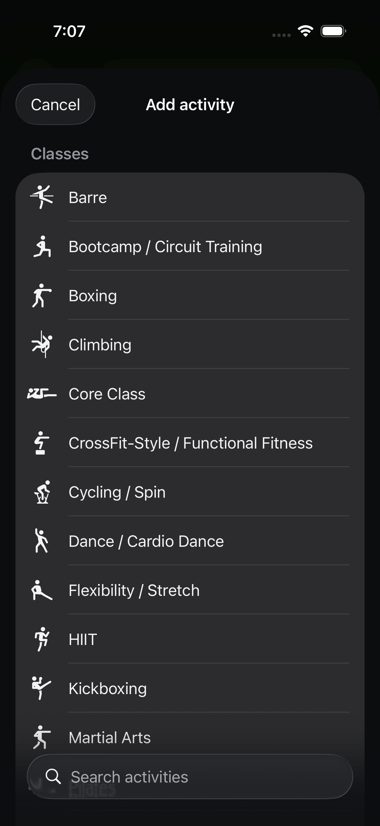
Alongside sets-and-reps exercises, Datum can log a duration-based activity — a gym class (yoga, spin, HIIT) or a cardio-machine session (treadmill, elliptical, stair climber). An activity has no sets or reps, just a duration and, when available, heart rate and calories.
An activity can stand on its own — a full class with nothing else logged — or sit inside an otherwise-normal strength session, like a 10-minute treadmill warm-up before you lift. Either way, it's logged the same way and shows up the same places.
Starting an activity right away#
Don't want to start a whole workout just to log a run or a class? On the Train tab, tap Start an activity. This opens the activity picker directly — pick one, and you're offered the same choice as anywhere else: live-tracked or after the fact. There's no need to start a freeform workout or open a template first. Adding an activity from inside a template or an active workout still works exactly as described below.
Favoriting an activity type#
Tap the star next to any activity in the picker to favorite it. Favorited activities show up in their own Favorites section at the top of the picker, in addition to their usual class/cardio/ outdoor group below — favoriting doesn't move it, it just adds a shortcut.
Planning an activity into a template#
Open a template and tap Add, then Add activity (the same menu as adding an exercise — see Plans & Templates). Pick an activity type from the picker, grouped by class vs. cardio machine, and optionally set a target duration. As with exercise targets, this is a plan, not a commitment — you're free to log something different when you actually do it.
Logging an activity#
Whether an activity was planned or you're adding one on the fly during a workout (tap Add on the active workout screen, then Add activity, the same as adding an unplanned exercise), it's logged one of two ways:
Live-tracked#
Tap into the activity and tap Start Activity. Datum shows a live elapsed-time counter and, if a heart rate source is available, your current heart rate (see below). Tap Stop Activity when you're done. The timer keeps running correctly even if you page away to another exercise, background the app, or relaunch it mid-activity — Datum tracks the real start time, not just how long the screen's been open.
After the fact#
Forgot to start the timer, or logging a class after it's over? Tap Log after the fact instead (or Edit start time / duration for one already logged) and enter a start time and duration directly. Datum then looks up heart rate and calorie data for that time window from Apple Health, the same as it would for a live-tracked one.
Heart rate during an activity#
While an activity is running, Datum shows your live heart rate if it has a source for it:
- A generic Bluetooth heart rate monitor, connected from Settings — see below.
- Apple Health, if a connected device (like an Apple Watch) is already writing heart rate data there in real time.
If neither is available, the activity screen shows a dismissible "No heart rate monitor connected" notice instead of leaving the space blank — tap the × to dismiss it for that activity. This never blocks logging; heart rate is always optional.
Datum does not connect directly to Whoop, Garmin, or any other wearable brand's own app or API — the only paths in are a paired Bluetooth heart rate monitor or whatever a device has already written into Apple Health (see Apple Health Integration). If you wear a device that only syncs to Apple Health in batches rather than live (Whoop is the common example), its heart rate will show up after the fact — through the after-the-fact logging path or a backfill into a live-tracked activity's average/max — rather than live during the activity itself.
Connecting a Bluetooth heart rate monitor (Experimental)#
In Settings, under Heart Rate Monitor (Experimental), tap Connect to scan for a standard Bluetooth heart rate strap or watch. This works with any monitor that supports the standard Bluetooth heart rate service — not a specific brand. Once connected, its live reading appears automatically during any activity you log afterward, until you disconnect it or it goes out of range.
This is marked experimental because it's built to the standard spec but hasn't yet been tested against a real monitor. Everything else in this guide works fully without one — heart rate is always optional, and after-the-fact logging pulls from Apple Health either way.
GPS route tracking for outdoor activities#
Walking, running, hiking, cycling, and open-water swimming — the outdoor, point-to-point activities — get GPS route tracking. This is separate from other outdoor-ish entries like jump rope, which stay in one place rather than covering a route, so they don't get a map.
While live-tracking one of these, Datum shows a map drawing your route as you move, along with live distance, pace, elevation gain, and step count, updating alongside your heart rate if a source is connected. Tracking keeps recording GPS even while your phone is locked, as long as you started the activity yourself — you don't need to keep the screen on or Datum in the foreground.
When you tap Stop Activity, you get a summary: the completed route on a map, plus total distance, duration, pace, elevation gain, average/max heart rate, and steps.
Logging one of these after the fact works the same as any other activity, with one difference: since there's no GPS trail to reconstruct, you can optionally enter distance and elevation gain yourself alongside the start time and duration. There's no map for a manually logged activity.
In Apple Health, a route-tracked activity's GPS path is written as part of its workout entry, the same way apps like Apple's own Fitness app record a route — not just a distance number, an actual map you can look back on later.
Datum asks for location and motion (step-counting) access the first time you start a live-tracked outdoor activity. Both are used only while an activity is running, never in the background outside of one you started yourself.
Where activities show up#
- History — an activity appears in History the same as any workout: standalone activities get their own entry, and an embedded activity shows alongside the strength exercises in the session it was part of.
- Reports — total minutes per activity type, and a trend of activity minutes per session over time — see Reports.
- Apple Health — each logged activity is written as its own workout entry, tagged with the right activity type (yoga, cycling, running, and so on) — see Apple Health Integration.