
Getting Started
Datum is a workout tracker built for people who actually want to look at their training data, not just log it and forget it. This page gets you from a fresh install to your first logged workout.
The five tabs#
Datum is organized around five tabs at the bottom of the screen:
- Train — start and log workouts. This is the app's home screen, and where you'll spend most of your time.
- History — review workouts you've completed, in full detail.
- Reports — personal records, trends, and correlations across your training over time.
- Exercises — browse the exercise library, or add your own.
- Settings — units, Apple Health, iCloud, and data export.
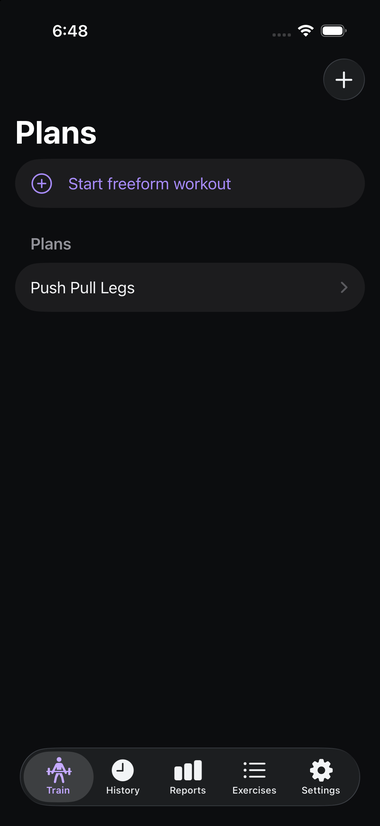
The Train tab, showing a saved plan alongside the option to just start a freeform workout.
You don't need to explore all five before you start — Train and Exercises are the only two you'll touch to log your first workout. The rest are there when you want them.
First launch#
The first time you open Datum, it loads a library of nearly 900 exercises — each with instructions, primary/secondary muscle groups, equipment needed, and a photo. This happens automatically in the background, over a few seconds; you don't need to do anything to trigger it, and you don't need an internet connection for it (the library is bundled with the app, not downloaded).
If you switch to the Exercises tab immediately after installing and the list looks empty or short, that's normal — just wait a few seconds and it will fill in.
There's nothing else to set up on first launch. No account to create, no tutorial to sit through, no permissions Datum needs before you can start logging.
Suggested first steps#
None of this is required, and none of it is locked in once you do it — you can change your mind on any of it later. But if you'd like a suggested order:
- Set your units in Settings — weight in pounds or kilograms, body measurements in inches or centimeters. Takes a few seconds. See Settings.
- Connect Apple Health, if you want Datum to read and write workouts, body metrics, and nutrition data to/from Apple's Health app. This is entirely optional — Datum works fully without it, and nothing is deleted or lost if you connect it later instead of now. See Apple Health Integration.
- Build a Plan and Template for a workout you do regularly — see Plans & Templates, which also covers letting Datum build one for you automatically if you'd rather answer a few questions than design it yourself. Or skip straight to a freeform workout if you'd rather pick exercises as you go.
- Start logging — see Logging a Workout for a full walkthrough of the active-workout screen, including things like warm-up sets and the rest timer that might not be obvious the first time you see them.
If you're not sure where to start, the honest answer is: tap Train, then Start freeform workout, and just log what you actually do today. You can build plans and templates once you know what a normal week looks like for you.
Everything stays on your device#
Datum stores all of your data locally on your iPhone, in a private database only the app can read. There's no account to create, no email or password, and no required sign-in of any kind.
iCloud sync is an optional setting you control yourself in Settings (see Settings) — it's off by default, so nothing leaves your phone unless you explicitly turn it on or connect Apple Health. Even with iCloud sync on, it uses your own private iCloud storage — nobody else, including the developer, can see your data.
If you get stuck on a word#
Gym and fitness apps use a lot of shorthand — "RPE," "1RM," "superset," "PR." You don't need to know any of it to use Datum, but if a screen shows a term you don't recognize, check the Glossary for a plain-English definition.
Where to go next#
- Want to understand the training methodology terms Datum uses (splits, progressive overload, deload weeks)? See Training Approaches.
- Ready to log something right now? See Logging a Workout.
- Curious what Datum tracks besides lifts? See Tracking Progress and Reports.