
History
The History tab lists every workout you've finished, most recent first, plus any workout still in progress. Tap a workout to see its full detail. While a workout is still in progress, tap any completed set to correct a mistyped weight, reps, or RPE — personal records, estimated 1RM, and volume history all update to reflect the correction automatically. Once a workout is finished, its sets are a permanent record and can no longer be edited from here.
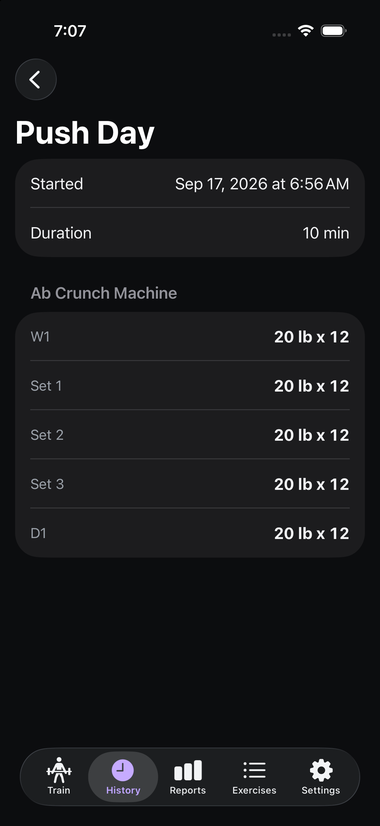
Each entry shows:
- Started — the date and time you began the workout
- Duration — total elapsed time from start to finish
- One section per exercise, listing every set logged — including warm-ups (labeled W1, etc.), working sets (Set 1, 2, 3...), and drop sets (D1, etc.) — with the weight and reps for each. See the Glossary if any of those labels are unfamiliar.
Any notes you wrote during the workout — both per-exercise notes and the end-of-workout note — are included here too.
If the workout included a logged class or cardio-machine session, it shows up here too — either as its own standalone entry, or alongside the exercises in a session it was embedded in. See Classes & Cardio Activities.
Finding a workout#
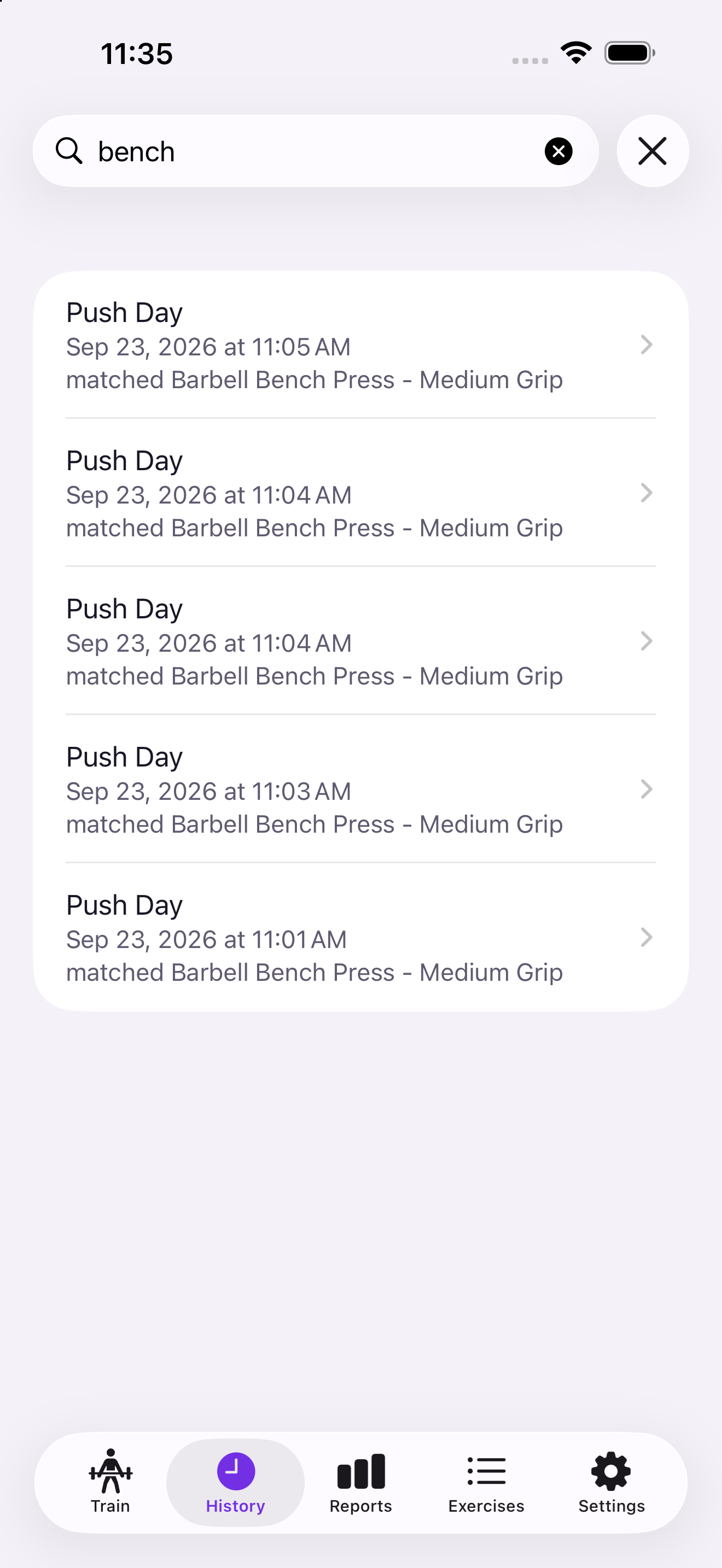
Search at the top of the History tab matches both the workout's name and the exercises inside it. That second part is the useful one: if you train from a plan, every session is called "Push Day", and searching for the name tells you nothing. Searching bench finds every workout you benched in, whatever it was called.
When a workout matches because of an exercise rather than its name, the row says so — matched Barbell Bench Press — so three identically-named rows are still tellable apart.
Search is forgiving: word order doesn't matter, punctuation is ignored (sit up finds "Sit-Up"), and small typos still work (squatt finds "Squat"). Very short words are matched exactly, because a one-letter slip in a three-letter word could match almost anything.
Use the calendar button to narrow by date — Last 30 days, Last 3 months, This year, or a custom range where you pick the two dates yourself. Both of those days are included in full. "This year" means since January 1st, not the last twelve months.
Search and date filter work together: squat, last 3 months.
If nothing matches, Datum says No workouts match rather than showing an empty list — a filtered list hiding everything should never look like your history has gone missing. Clear the search, or choose All time, to get everything back.
Why history can look different from a template#
A workout keeps the exercises and targets it had at the moment you started it, even if you've since edited the template it came from. So if you look back at an older workout and it doesn't match your template's current setup, that's expected — it's a record of what you actually did that day, not a live mirror of your plan. See Plans & Templates for more on why that choice was made.
If an exercise's section reads "Removed exercise" instead of a real name, the custom exercise it was logged under has since been deleted without reassigning its history to another exercise (see Exercise Library) — the logged sets themselves are untouched, only the name is gone.
In-progress workouts#
A workout that's still going shows an In progress badge next to its name. Open it and tap the ⋯ button in the top-right corner for three actions:
- Resume — jump back into live logging, exactly where you left off. This is the same as tapping the Resume card on the Train tab.
- Finish now — end the workout as-is, right from here. Same effect as the normal Finish flow, just without the end-of-workout notes prompt.
- Discard — delete the workout outright.
Only one workout can be in progress at a time, so if you have an old stray in-progress session sitting in History from before this existed, resolve it with one of the actions above.
You can also discard a workout directly from the active logging screen — see Logging a Workout.
Deleting a workout#
Swipe left on any workout in the History list to delete it. If Apple Health is connected and this particular workout had already been written there, Datum asks whether to also remove it from Health — "Keep it in Health" or "Delete from Health." Keeping it is the default choice, so your Apple Health data is never touched unless you explicitly ask for it to be. If the workout never synced to Health (sync wasn't on, or nothing was written), it's deleted immediately with no extra question, the same as before.
Deleting in Datum only ever affects that copy — an entry you choose to keep in Apple Health stays there and is unaffected by anything else you do in Datum afterward. See Apple Health Integration for more.