
Settings
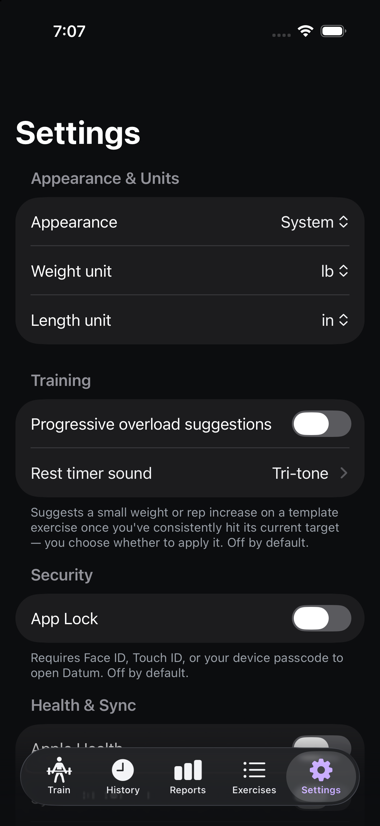
Settings is grouped into a few labeled sections, roughly most-touched first and support/about last.
Appearance & Units#
- Appearance — System (default), Light, or Dark. Overrides your device's own Light/Dark setting for Datum specifically, taking effect immediately, no restart needed. Choose System to just follow whatever your device is set to.
- Weight unit — pounds (lb) or kilograms (kg). Changing this reformats every weight shown in the app, including past workouts — nothing is recalculated incorrectly, it's purely a display conversion.
- Length unit — inches (in) or centimeters (cm), used for body measurements.
Training#
- Progressive overload suggestions — off by default. When on, suggests a weight or rep increase on a template exercise once you've consistently hit its current target — never forced, you choose whether to apply it. The training goal that shapes those suggestions belongs to each Plan and is set on the plan's own screen, so a strength plan and a conditioning plan can progress differently. The picker here only sets the default goal for new plans you create from now on; changing it never alters a plan you already have. See Plans & Templates.
- Rest timer sound — which tone plays when the rest timer reaches zero. Tap through to choose from iOS's own built-in alert tones, grouped Current and Classic the same way Settings > Sounds & Haptics does — tapping a tone plays it right away so you can hear it before deciding. A haptic tap always fires too; the tone itself is silenced by your phone's Ring/Silent switch and still plays through connected headphones. See Logging a Workout.
Security#
- App Lock — off by default. When on, requires Face ID, Touch ID, or your device passcode to open Datum, with a "Re-lock after" timer (Immediately, 1/5/15/30 minutes, or 1 hour) you choose. See the note below.
Health & Sync#
- Apple Health — a toggle for Datum's two-way Apple Health integration: completed workouts and body metrics are written out, and calorie/heart-rate data, smart-scale body metrics, and dietary data from other apps are imported in. Turning it on includes a one-time catch-up sync of workouts you'd already logged before connecting; turning it off any time stops syncing. Off by default. See Apple Health Integration for exactly what syncs.
- Sync with iCloud — backs up and syncs your workouts across your own devices via iCloud. Off by default. Turning it on uploads everything already on this device automatically the first time; turning it on or off takes effect the next time you restart Datum, which the screen will remind you to do. Once it's on, the screen tells you what sync is actually doing. See the note below.
- Delete iCloud copy — removes the copy of your data stored in iCloud. Everything on this iPhone stays as it is. Always available, whether or not sync is on. See the note below.
Heart Rate Monitor (Experimental)#
- Heart rate monitor — connect a standard Bluetooth heart rate strap or watch for a live reading during a class or cardio activity. Marked experimental: built to the standard spec but not yet tested against a real monitor. See Classes & Cardio Activities.
Data#
- Body metrics — opens the screen for logging weight, body fat %, lean body mass, and other measurements. See Body Metrics & Measurements.
- Export data — shares your plans, workout sessions, body metrics, and nutrition data as a JSON file via the standard iOS share sheet. See Exporting & Importing Your Data.
- Import data — adds plans, workout sessions, body metrics, and nutrition data back in from a previously exported JSON file. Never removes or overwrites anything already in the app. See Exporting & Importing Your Data.
- Import shared plan/template — opens a file picker for a
.datumfile someone shared with you, and shows a preview of what's in it before anything is added — the same preview you get by tapping a.datumfile directly in Mail, Messages, or Files; this is the fallback for a file you saved earlier or received somewhere that doesn't hand off to Datum automatically. See Sharing Plans & Templates.
Support#
- Report a bug / Request a feature — opens an email to Datum's developer, pre-filled with prompts for the useful details and with your app and iPhone version at the bottom. No workout data is included, nothing is sent until you tap Send, and you can edit or delete any of it first. See the note below.
About#
- Datum website / Documentation — opens the Datum website or its documentation section in your browser. The same guides you're reading now, kept up to date there.
- Version — the app version you're running.
A note on App Lock#
App Lock uses your device's own Face ID/Touch ID/passcode — Datum never sees or stores a separate PIN. Turning it on needs a passcode already set on your device; if none is set, the toggle is disabled with an explanation. Once on, Datum locks on a fresh launch, after the chosen timeout elapses while backgrounded, and any time your device's screen was locked while Datum was in the background — whichever comes first. It also blurs Datum's content in the App Switcher, so your workout data isn't visible in the multitasking preview.
A note on iCloud sync#
iCloud sync is new in this Beta build and is off by default. Turning it on requires an iCloud account signed in on your device. Because the underlying sync connection is only established at launch, changing the toggle needs a restart of Datum to actually take effect, which the screen will remind you to do.
What the status line tells you#
When sync is on, Datum shows you what it's actually doing, rather than leaving you to guess:
- Syncing with iCloud. — confirmed working.
- Checking iCloud… — Datum hasn't heard back yet. Normal for a moment after launch.
- Not signed in to iCloud, No iCloud connection right now, or iCloud is restricted on this iPhone — sync can't run at the moment, but nothing is broken. Sign in, reconnect, or wait, and Datum picks up where it left off on its own.
- iCloud sync isn't working. — something genuinely went wrong. Datum shows the underlying error so it can be reported rather than guessed at. Your data on this iPhone is unaffected.
Datum never turns the setting off for you. If you asked for sync and something temporary is in the way — you're signed out, or offline — your choice stays as you set it and syncing resumes by itself. Earlier Beta builds silently switched the toggle back off in that situation, which made it look like the setting hadn't stuck.
What syncs, and how conflicts are handled#
Sync covers everything Datum stores: plans, templates, your exercise library, workout history, body metrics, and nutrition entries. If the same thing is edited on two devices before they've had a chance to talk to each other, the most recent change to each individual field wins, and that happens silently — Datum won't ask you to pick a version.
If anything looks like it isn't syncing the way you'd expect, Export data remains a reliable manual way to move a copy of your data between devices.
Deleting the iCloud copy#
Turning sync off just stops syncing — the copy already in iCloud stays there. That's deliberate: the toggle means "sync or don't sync," and it is never destructive on its own. When you turn it off, Datum asks whether you also want the iCloud copy deleted, and the answer defaults to no.
There's also a Delete iCloud copy button, available at any time.
What you should know before using it:
- It cannot be undone.
- It removes the copy for your whole Apple Account, not just this iPhone. iCloud stores one shared copy, so deleting it affects every device signed in to that account. (Datum is iPhone-only today, so in practice that means this iPhone — but if you ever add a second device with sync on, it would upload a fresh copy.)
- Everything on this iPhone stays exactly as it is. Your plans, workouts, body metrics and nutrition entries are untouched.
- It turns iCloud sync off. If sync stayed on, Datum would upload a fresh copy within seconds and the deletion would be pointless.
- Datum needs to be closed and reopened to finish. The deletion happens on the next launch, while nothing is syncing. This isn't a formality — removing the iCloud copy while syncing is active can take your on-device data with it.
Afterwards Datum tells you what actually happened: that the copy was deleted, that there was nothing stored in iCloud to begin with, or that it couldn't be removed and is still there — including the underlying error. It will never claim your data is gone when it isn't.
Turning sync back on later simply uploads a fresh copy from this iPhone.
If you delete Datum's data from iOS Settings#
iOS has its own way to remove an app's iCloud data, under Settings > your name > iCloud > Manage Account Storage > Datum. That path isn't controlled by Datum, and if Datum is open and syncing when you use it, it can remove the data from this iPhone as well. Use Datum's own Delete iCloud copy button instead — it sequences the deletion safely. If you do use the iOS Settings path, quit Datum first, and keep an exported backup.
A note on sending feedback#
Report a bug and Request a feature each open a normal email, addressed to Datum's developer and pre-filled with a few questions worth answering — what happened and what you expected, or what you're trying to accomplish.
At the bottom, Datum adds three lines: the app version, your iOS version, and your device model. That's all. No workout data, nothing that identifies you, and it's written into the body in plain sight rather than hidden, so you can read it and delete it before sending if you'd rather not include it.
Datum never sends anything on its own. The email is composed in your own mail account, and nothing leaves your iPhone unless you tap Send.
If your iPhone has no email account set up, Datum says so and shows you the address instead, so you can write from somewhere else.