
Plans & Templates
Plans and templates let you set up a workout once and reuse it every time you train, instead of picking exercises from scratch each session. If you'd rather not plan ahead at all, you can skip this entirely and just start a freeform workout from the Train tab — see Logging a Workout.
Not sure how to divide your training across the week? Tap Training Approaches in the Train tab's "..." menu for a plain-English look at the common splits — Full Body, Upper/Lower, Push/Pull/Legs and others — including who each tends to suit and what the research says actually drives results. It's also on this site as Training Approaches.
Plans#
A Plan is just a named folder that holds one or more Templates — for example, a "Push/Pull/Legs" plan holding three templates (one per day), or a simple "My Routine" plan with just one. To create one, tap the + button on the Train tab and give it a name.
If a friend uses Datum too, you can send them a Plan or Template directly instead of them rebuilding it from scratch — see Sharing Plans & Templates.
The sample plan#
Datum comes with one plan already set up: "Sample Plan: Push / Pull / Legs," with three templates (Push Day, Pull Day, Leg Day) covering a standard weekly split, so there's something real to look at and start a workout from right away instead of an empty Train tab. It's ordinary content — rename it, edit any exercise's targets, add or remove exercises, or delete the whole thing, exactly as you would with a plan you built yourself. It's seeded once, the first time you open the app after it's added — deleting it doesn't bring it back.
Templates#
A Template is one specific, reusable workout: an ordered list of exercises, each with target sets, reps, weight, and rest time. Tap into a Plan, then tap + to add a Template and give it a name (e.g. "Push Day").
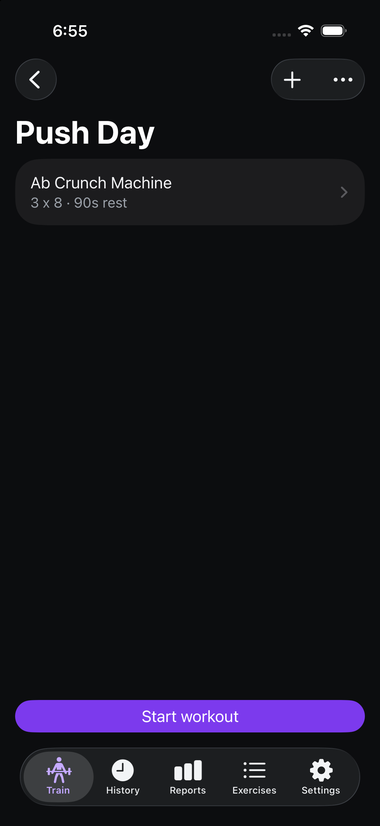
A template with one exercise added. "3 x 8 · 90s rest" means 3 sets of 8 reps, resting 90 seconds between sets.
Adding exercises#
Tap the + button on a template's screen to open the exercise picker (see Exercise Library for how searching and filtering work there). You can select more than one exercise at once — useful both for adding several exercises quickly and for setting up a superset (below).
Adding activities#
Besides exercises, a template can include a duration-based activity — a gym class or cardio-machine session, with no sets or reps of its own. Tap Add, then Add activity instead of Add exercise, to add one alongside your exercises (e.g. a treadmill warm-up before a lifting session) or on its own. See Classes & Cardio Activities for the full picture, including how they're logged and where they show up afterward.
Setting targets#
Tap into any exercise you've added to a template to set its targets:
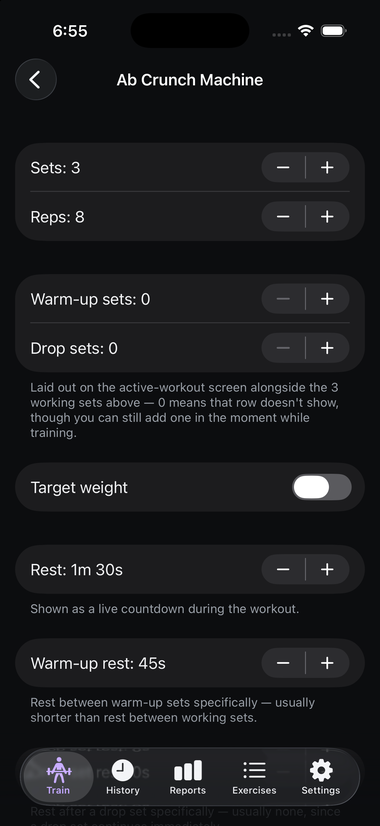
- Sets and Reps — how many working sets, and how many reps per set. These are targets, not commitments — you're free to log something different when you actually train. See Set / rep if those words are new to you. For a time-based exercise (a plank, carry, or other hold), this becomes Sets and Duration, shown and set as minutes:seconds instead of a rep count.
- Warm-up sets — a count of lighter sets to do before the working sets, to prepare your muscles and joints. Leave at 0 if you don't want any; you can still add one in the moment while training even if you didn't plan for it. See Warm-up set.
- Drop sets — a count of sets to do after the working sets, at a reduced weight with little or no rest. See Drop set.
- Target weight — an optional toggle; turn it on if you want a specific planned weight to show while logging (otherwise Datum just shows your prior session's weight as a reference).
- Rest — how long the countdown timer runs after each working set.
- Warm-up rest — a separate, usually shorter, rest time specifically between warm-up sets.
Progressive overload suggestions#
If you've turned on Progressive overload suggestions in Settings, opening an exercise's targets may show a suggested weight or rep increase — based on consistently hitting the current target over several recent sessions with that exercise, not just once. Tap it to apply, or ignore it to keep your current target; it never changes anything on its own.
Each Plan has its own training goal, set from a picker at the top of the plan's screen: Getting Stronger, Bulking Up, Weight Loss, or General Health. The goal changes how many sessions the app looks for and how it progresses — Bulking Up in particular grows reps first and only suggests a weight increase once reps reach a sensible ceiling, closer to how real hypertrophy programs work. Because the goal is per-plan, a strength plan and a conditioning plan can progress differently at the same time.
A plan with its goal set to "Not set" shows no suggestions at all. That's deliberate rather than a gap: the advice is specific to a goal, so guessing one would mean presenting untailored advice as though it were tailored. Set a goal on the plan and suggestions start appearing.
New plans pre-fill their goal from the Default goal for new plans picker in Settings, but only while suggestions are switched on — otherwise a new plan starts with no goal. Changing that default never alters a plan you already have. For a time-based exercise, the suggestion instead extends your target hold time once you've held it for at least that long across your recent sessions — weight isn't part of the comparison, since most holds are bodyweight.
Supersets#
Select two or more exercises at once (either when first adding them, or by re-opening the picker) and a "Mark as superset" toggle appears:
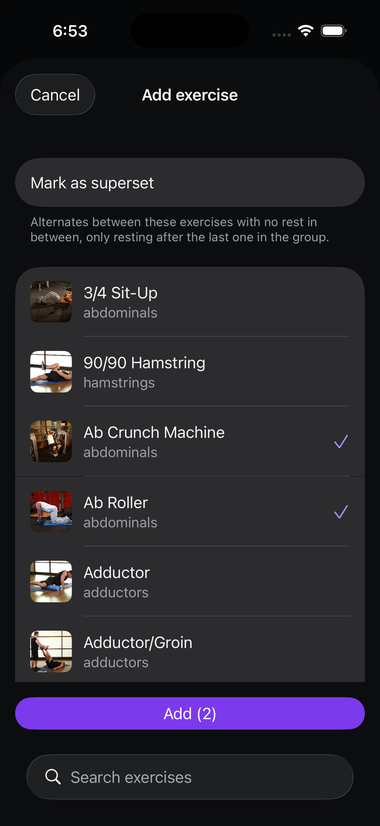
Turning this on links the selected exercises into one group. During a workout, Datum walks you through each exercise in the group in turn with no rest in between, until you've completed a full round, shown as "Superset 1 of 2" (etc.) — see Superset and Logging a Workout.
Building a plan for you#
Tap + on the Train tab and choose Build a plan for me instead of Create manually, and Datum will put a plan together from seven questions:
- Split — Full Body, Upper/Lower, Push/Pull/Legs, Bro Split or 2-Day Push/Pull. There's a link straight to Training Approaches if you want to read up first.
- Days per week — how often you plan to train. Datum doesn't assign workouts to particular weekdays; you rotate through them in whatever order suits your week.
- Time per session — drives how many exercises and sets each workout gets, counting working sets, rest, and time to move between exercises. Shorter sessions lean harder on compound movements. If a session can't fit everything, Datum drops sets before it drops exercises, so a Full Body day still covers your whole body.
- Goal — sets this plan's training goal (see above), which shapes its sets, reps and rest.
- Focus — muscle groups to emphasise or ease off. Optional, no limit, and these weight the selection rather than ruling anything in or out.
- Equipment — start from Full Gym, Home Gym, Bodyweight Only or Custom, then tick anything off. The presets are a starting point, never a lock.
- Injuries — quick-tap areas plus a free-text box for anything else.
Nothing is saved until you accept it. The review screen shows every workout and exercise, and tapping any of them opens the same swap picker described below. Once you save, it's an ordinary plan — rename, edit or delete anything in it exactly as you would one you built yourself.
Generated plans deliberately leave target weight blank. Datum has no way to know your working weights, and a number that looks deliberate is worse than none.
Training around an injury#
Type anything you like in the injuries box — "rotator cuff", "sciatica", "plantar fasciitis". The review screen then tells you two things plainly:
- Adjusted for — the areas Datum recognised and took into account.
- Not recognised — anything it didn't understand, quoted back to you, with no exercises excluded for it. You can tap it to match it to an area yourself, and Datum remembers that for next time.
That second line matters: without it, you'd have no way of knowing whether what you typed was used. Nothing is silently ignored.
If your equipment and injury answers between them rule out everything for a muscle group, the review screen says so rather than quietly producing a shorter workout.
This is not medical advice, and Datum cannot assess an injury. What it does is approximate: it skips exercises whose names are commonly flagged for an area, and ranks down — without ruling out — those that work the muscles around it. It will miss things. Use your own judgement, stop if something hurts, and talk to a doctor or qualified trainer about training around an injury or condition.
Swapping an exercise#
When a machine's occupied, or a movement stops agreeing with you, you don't have to delete the entry and rebuild it. Long-press an exercise in a template and tap Swap exercise, or open it and tap Swap for a different exercise at the bottom.
You'll see up to six alternatives that share a primary muscle with the one you're replacing, each showing the equipment it needs. Equipment isn't filtered — a suggestion might need a cable machine you don't have — so there's a Search the full library option for when none of them fit.
What happens to the targets:
- Sets, rest, warm-up and drop-set counts carry over, and the exercise keeps its place in the template.
- The target weight is cleared. A working weight belongs to a specific movement — 225 lb on a barbell squat isn't 225 lb on a goblet squat — so carrying it across would leave a number sitting there looking deliberate when nothing supports it. Set it again as you would for any newly added exercise.
- Swapping between a reps exercise and a timed hold resets that target to a sensible starting value, because "8" means eight reps for one and eight seconds for the other. Any suggestion that would change the kind is marked timed or reps in the list, so you can see it coming.
- Workouts you've already logged are never changed. A completed workout records what you actually did at the time and doesn't follow later edits to the template.
Reordering and removing exercises#
From a template's exercise list, use the standard iOS swipe-to-delete gesture to remove an exercise, or drag the reorder handles to change the order exercises appear in during a workout.
If a template entry reads "Removed exercise" instead of a real name, the custom exercise it referenced was deleted from your library without reassigning it (see Exercise Library) — the entry is still there, with its targets intact, just no longer pointing at a real exercise. Swipe it away like any other row if you don't need it, or add a replacement exercise in its place.
Duplicating a Plan or Template#
Swipe a Plan or Template row and tap Duplicate (or long-press it for the same option in a context menu) to use it as a starting point for a modified version, without touching the original.
- Duplicating a Plan always deep-copies the whole thing — every Template it contains, with all their exercises and targets — into a brand-new, fully independent Plan. There's no picker to duplicate just some of its templates; it's all-or-nothing.
- Duplicating a Template always asks where the copy should go first: this Plan, another existing Plan, or a new Plan. Picking "New Plan" creates a new Plan (named after the duplicate) to hold it.
Either way, you get a suggested name first — colliding with something already named that suggests a numbered suffix (e.g. "Push Day" → "Push Day (2)") — editable before you confirm. Nothing is duplicated silently. A duplicate references the same exercises as the original (no extra copies added to your exercise library) but starts with zero workout history, exactly like any newly created Plan or Template.
Renaming or deleting a Plan or Template#
Long-press a Plan or Template row for a context menu with Rename, Duplicate, and Delete. Swiping the row shows Delete and Duplicate directly.
- Renaming just changes the name — nothing else about it changes.
- Deleting a Plan removes every Template inside it too. Deleting a Template removes every exercise and activity planned inside it. Either way, Datum asks you to confirm first, since this can't be undone. Workouts you've already logged stay in History either way — deleting a Plan or Template never touches your logged history, only the plan itself.
Editing a template later#
Editing a template's exercises, targets, or set structure only affects workouts you start after the edit. Past workouts keep the exercises and targets they had when you started them — editing a template never rewrites history. This is intentional: your workout log is a record of what actually happened, not a live view of your current plan.