
Logging a Workout
Starting a workout#
From the Train tab, you can start a workout two ways:
- From a template — open a Plan, open a Template, and tap Start workout. This copies that template's exercises and targets in as your starting point for this session.
- Freeform — tap Start freeform workout on the Train tab to begin with nothing planned, and pick exercises as you go. This is useful when you're improvising, don't have a template for what you're doing, or just don't feel like planning ahead.
Once logging starts, freeform and template-started workouts work exactly the same way from here on.
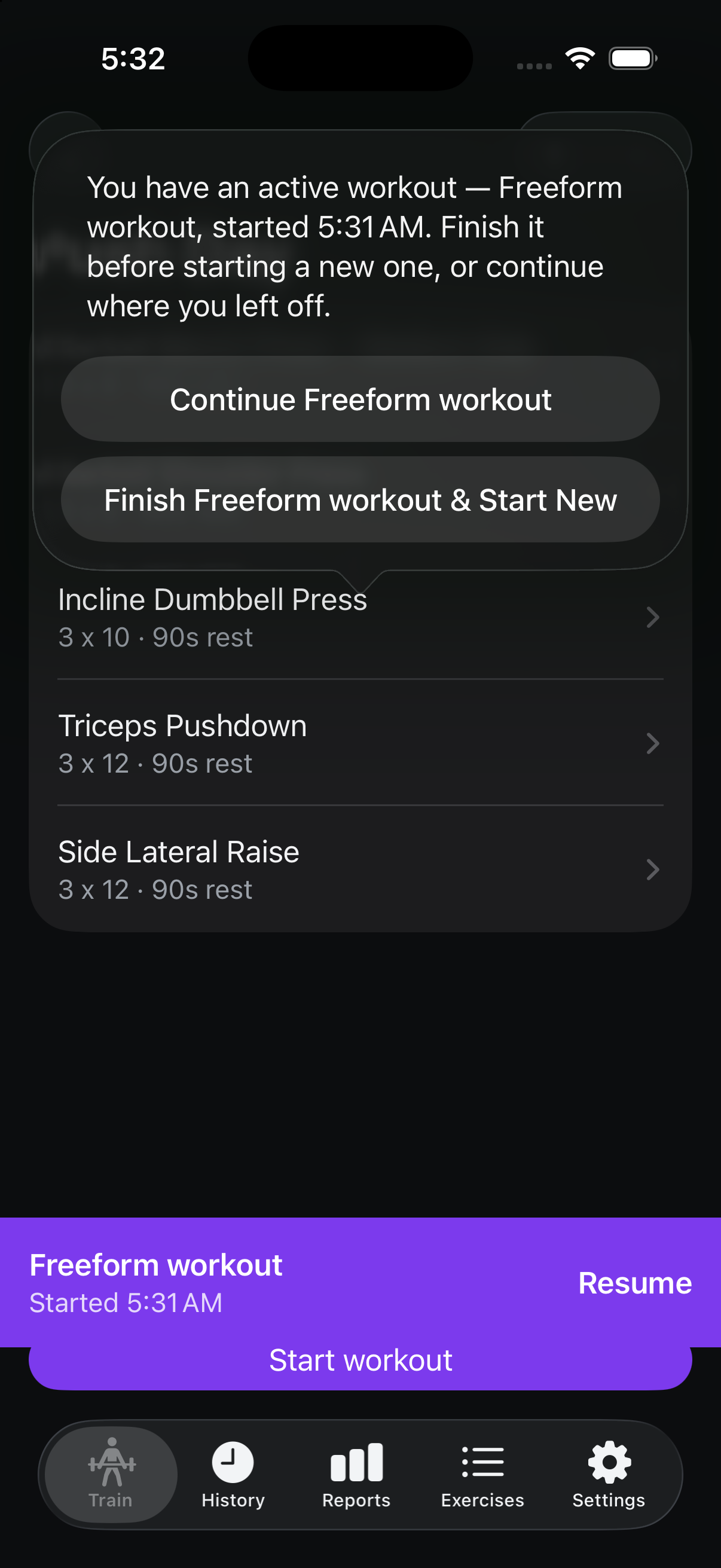
Only one workout can be in progress at a time. If you background the app, relaunch it, or navigate away mid-workout, Datum doesn't lose track of it. If you try to start a workout from a different template or plan (or a freeform one) while one's still going, Datum won't silently swap it out from under you — it asks first, so you can either jump back into what's already running or finish it and start the new one:
Resuming a workout#
Whenever a workout is in progress, the header tints violet — with the tab's own title inside it — and a matching banner shows just above the tab bar, with the session's name and start time, no matter which tab you're on:
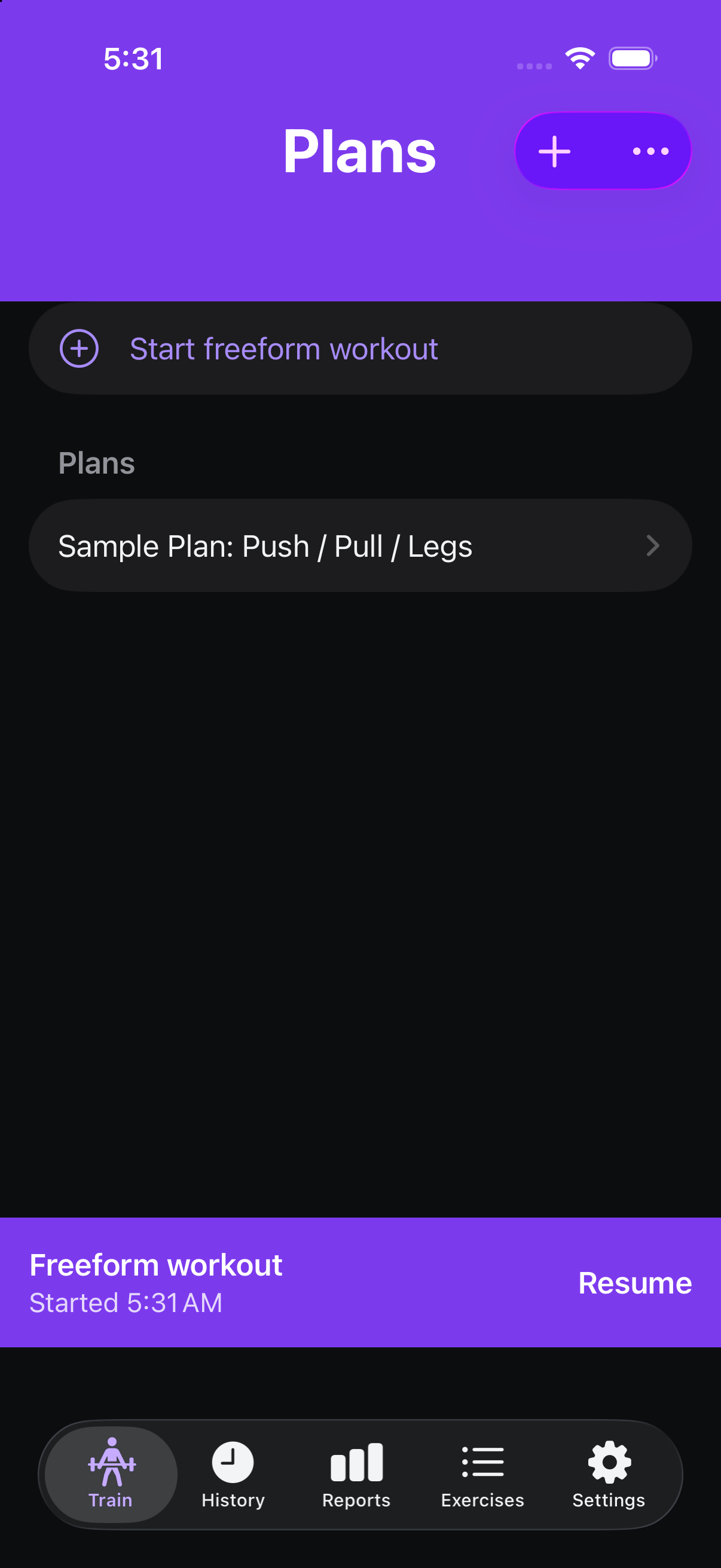
Tap either the header or the banner to jump straight back into logging, exactly where you left off. Datum never jumps you into this screen automatically — relaunching the app always opens to whichever tab you left it on, with the tinted header and banner waiting there. From the logging screen itself, tap the chevron in the top-left corner to minimize back to browsing without finishing — the header and banner stay put as your way back in.
Changed your mind about a workout entirely? Tap Discard in the top-right corner — Datum asks you to confirm before deleting it, since this is reachable mid-workout. See Deleting a workout for what happens next.
An in-progress workout also shows up in History with an In progress badge. Open it to Resume it from there too, or to Finish or Discard it — see History for details.
The logging screen#
Every planned set — warm-ups, working sets, and drop sets — is laid out as its own row up front, in the order you'll do them, rather than one shared input you log over and over:
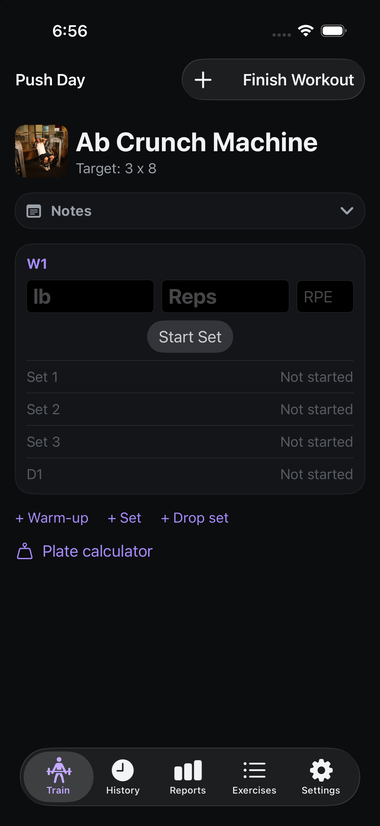
Here, W1 is a warm-up set, Set 1–3 are working sets, and D1 is a drop set — all labeled and ordered exactly as the template defined them (see Plans & Templates). If this is a freeform workout, or you want to add something the template didn't plan for, the + Warm-up, + Set, and + Drop set links let you add rows on the fly.
With more than one exercise in the session, "Exercise 1 of 2" (etc.) at the top lets you page between them with the arrows on either side. A small dot per exercise underneath fills in solid once that exercise's sets are all logged, so you can see progress across the whole session without opening each one.
Tap the exercise's name or photo at the top of the screen to open its full detail — instructions, muscle groups, and your notes — without leaving the workout. Tap back (or Done) and you land right back where you were logging.
Logging one set#
For each set, in order:
- Enter your weight and reps (your prior workout's numbers for this exercise are shown as a reference goal, if you've done it before). The active set's row gets a light violet highlight so it's obvious which one you're working on. Warm-up sets can be filled in for you — see Suggested warm-up weights.
- Tap Start Set when you begin the set. This starts a timer that tracks how long the set actually takes, shown live next to the "Set" label while it runs and afterward (e.g. "12s") next to the completed row. Starting a set also skips any rest countdown still running from the set before it — no need to tap Skip separately once you're already moving.
- Optionally enter an RPE — how hard the set felt, from 1 to 10 in half-point steps. This is entirely optional and can be left blank; see RPE if you're not familiar with it.
- Tap End Set (the same button, now relabeled) when you finish the set. A completed row gets a checkmark and a subtly different background so it reads as done at a glance. Whatever you've typed into a not-yet-logged set's fields — a real prior-workout prefill or just something you're part-way through typing — stays put even if you switch to another exercise and back.
Made a mistake on a set you already logged? Tap its completed row to fix the weight, reps or RPE — this works for as long as the workout is still in progress, from this screen or from History. Once you finish the workout, its sets become a permanent record and can no longer be edited.
For a time-based exercise — a plank, a carry, a wall sit, or any other hold — the reps field is replaced by a live Start Hold / Stop timer instead: tapping Start Hold begins a live count-up (shown as minutes:seconds), and tapping Stop ends it and logs however long you held it. Datum also shows Last: and your prior session's hold time right next to the counter, the same reference-goal idea as the weight/reps prefill for a rep-based set. Weight is entirely optional for a hold — leave it blank for a bodyweight exercise, or enter it for a weighted plank or carry.
Once every planned (and any manually-added extra) set for an exercise is logged, its name gets a checkmark badge at the top of the screen, and its dot in the exercise-pager strip (see above) fills in solid — an easy way to tell which exercises in a multi-exercise workout are actually done.
Suggested warm-up weights#
If an exercise has warm-up sets and you've never logged a warm-up for it before, Datum fills the weights in with a suggested ramp instead of leaving them blank. It's a starting point, not a prescription — type over it whenever you like.
The ramp builds toward roughly 70% of your working weight, spread across however many warm-up sets you've set up:
| Warm-up sets | Suggested | For a 225 lb working weight |
|---|---|---|
| 1 | 50% | 115 |
| 2 | 45%, 65% | 100, 145 |
| 3 | 35%, 50%, 70% | 80, 115, 160 |
| 4 | 30%, 45%, 55%, 70% | 70, 100, 125, 160 |
Weights are rounded to something you can actually load — the nearest 5 lb, or 2.5 kg if you work in kilograms.
The working weight it ramps toward is your exercise's target weight if you've set one, and otherwise the first working set you logged last time.
Two things it deliberately won't do:
- It never overrides what you actually lifted. If you warmed up for this exercise in a previous session, Datum fills your warm-ups in from that session and suggests nothing — your own numbers are better information than a percentage.
- It doesn't apply to timed exercises. A plank or a dead hang has no weight to ramp.
If Datum has nothing to work from — a brand-new exercise with no target weight and no history — the fields stay blank, as before.
The rest timer#
As soon as you end a set, a rest countdown starts automatically at the top of the screen:
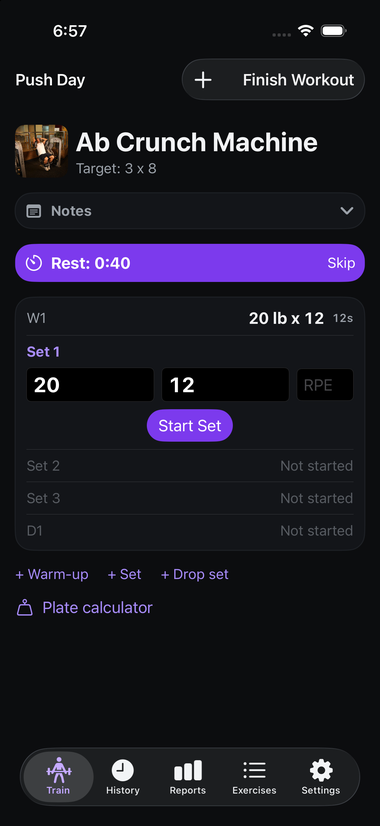
The countdown length comes from the rest time set on the template (or a default, in a freeform workout). Tap Skip any time to end the rest early and move on immediately — useful if you recover faster than planned, or just don't want to wait.
The timer keeps counting down no matter which exercise you're currently viewing — jump ahead to another exercise mid-rest and the banner follows you, so you never lose your place. When the countdown reaches zero, Datum plays a short tone (pick which one in Settings) and a haptic tap; the tone respects your phone's Ring/Silent switch (it goes quiet, but the haptic still fires) and still plays through connected headphones.
No rest timer starts once there's nothing left to rest for — that is, once the set you just finished was the very last one in the entire workout. Finishing all the sets in just one exercise with others still to go still rests as usual, since that rest is for the exercise you're about to move to next.
Supersets during logging#
If two or more exercises were marked as a superset when the template was built (see Plans & Templates), Datum automatically walks you through one set of each exercise in the group in turn, with no rest in between, resting only after you finish a full round. The screen shows "Superset 1 of 2" (etc.) so you always know where you are in the rotation.
Classes & cardio activities#
Besides exercises, a workout can include a duration-based activity — a gym class or cardio-machine session, logged with a live start/stop timer or after the fact instead of sets and reps. See Classes & Cardio Activities for the full guide, including live heart rate during an activity.
Exercise notes#
Each exercise has a persistent notes field — the collapsible Notes banner near the top of the screen, collapsed by default. Tap it to expand, read, or write notes for that exercise: form cues, reminders about machine settings, anything you want in front of you next time you do that exercise. These notes carry over between workouts automatically.
Plate calculator#
Tap Plate calculator on the logging screen to see the per-side plate breakdown for a target barbell weight:
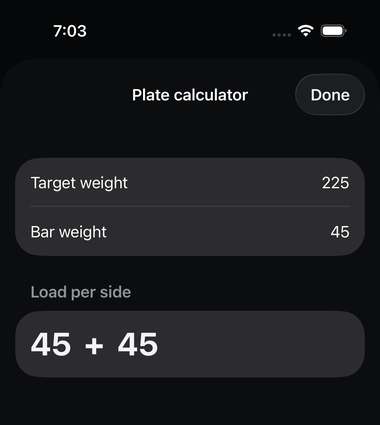
Enter your target weight and the bar weight you're using (defaults to a standard 45 lb/20 kg bar), and Datum works out how much weight to load on each side using standard plates — in the example above, 225 lb total needs a 45 lb bar plus two 45 lb plates per side (45 + 45 + 45 + 45 + 45 = 225). If your target isn't exactly reachable with standard plates, Datum tells you the closest weight you can load instead of silently rounding.
Finishing a workout#
Tap Finish Workout in the top-right corner when you're done. You'll get one more chance to add end-of-workout notes — reminders for next time, anything worth remembering about the session as a whole (as opposed to per-exercise notes, above):
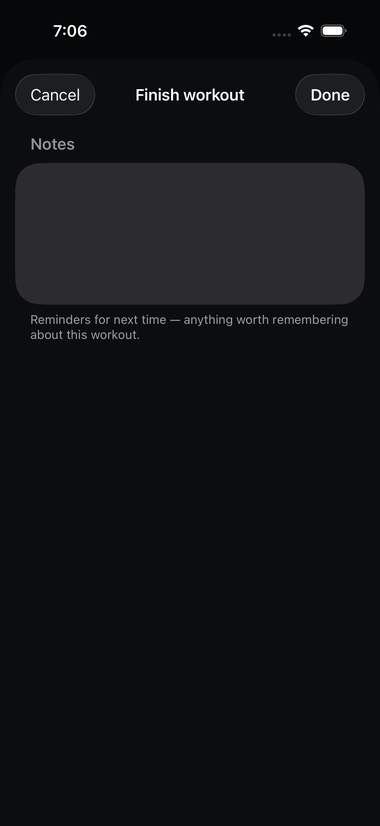
Tap Done to save the workout. It immediately appears in History with full set-by-set detail, and feeds into Reports.
If Apple Health is connected, the finished workout is written there too, and Datum will show calorie and heart-rate data for that session's time window if a connected device recorded any (see Apple Health Integration).