
Exercise Library
The Exercises tab holds Datum's full exercise library — nearly 900 exercises seeded automatically on first launch, plus any you add yourself.
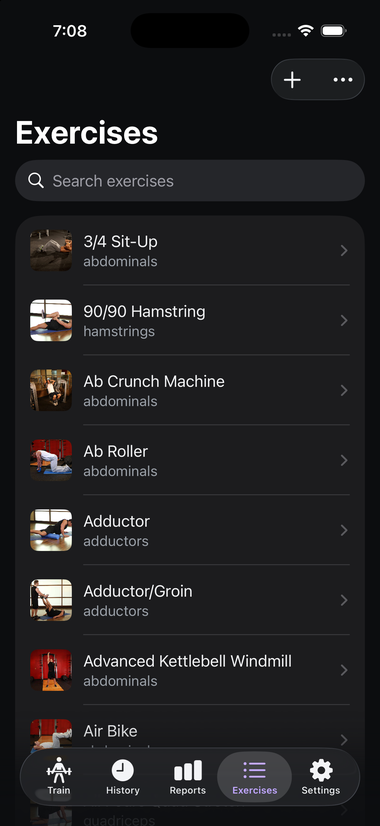
Browsing and searching#
- Type in the Search exercises bar to filter the list by name. Search is tokenized and order-independent — typing "tricep ext" will find "Triceps Extension" even though the words are in a different order than the exercise's actual name. It also tolerates small typos ("Bemch Press" still finds "Bench Press"), and treats punctuation like hyphens and apostrophes as interchangeable with spaces, so "sit up" and "sit-up" match each other regardless of which one an exercise's actual name uses.
- Tap the Filters menu (top right) to narrow the list by muscle group, equipment, or Custom exercises only — the last one shows just the exercises you've added yourself, handy for reviewing or cleaning up your own list separately from the seeded library. Muscle group and equipment are each their own sub-menu, so you can combine them (e.g. chest exercises you can do with just dumbbells). Pick "Clear all filters" from the same menu to reset all three at once.
- Tap the star next to any exercise to favorite it. Favorited exercises get pinned to a Favorites section at the top of the list, above everything else — a quick shortcut to the exercises you use most, separate from search and the muscle-group filter. This works the same way in the "Add exercise" picker (below), and you can also favorite from an exercise's detail screen.
Exercise detail#
Tap any exercise to see its full detail: a photo, instructions, primary and secondary muscle groups, equipment needed, and a persistent notes field.
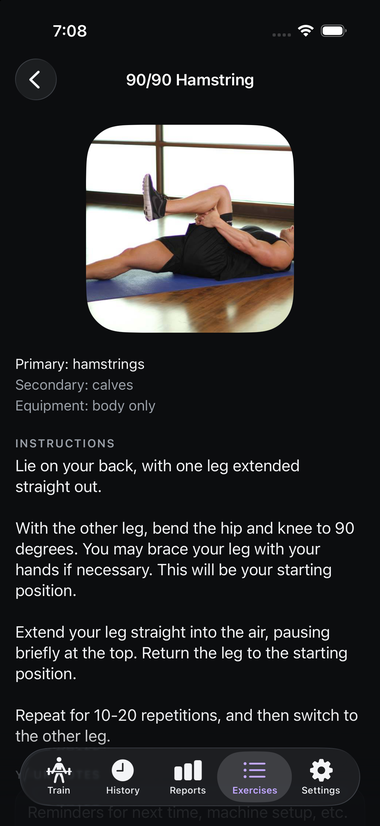
The notes field here is the same one that shows up as a collapsible banner while you're logging a set for that exercise (see Logging a Workout) — write something here once and it'll be there the next time you do the exercise, from either screen.
If other exercises share a primary muscle with this one, a Similar exercises list shows up here too — handy for finding a same-muscle alternative when your usual equipment is in use. Tap any of them to jump straight to that exercise's own detail screen.
Adding your own exercises#
Tap + on the Exercises tab (or from inside the "Add exercise" picker when building a template) to create a custom exercise with:
- A name and instructions
- An optional photo, picked from your own photo library
- At least one primary muscle group — required, not optional, so Reports' volume-by-muscle- group chart can always attribute your training volume somewhere; you can also add secondary muscles, which are optional. Editing an existing custom exercise later works the same way — you can add or change primary muscles, but can't clear the last one down to none.
- A Time-based (hold/carry) toggle — turn this on for a plank, carry, wall sit, or any other exercise you hold or perform for a duration rather than a rep count. This changes how the exercise is logged and tracked everywhere: templates get a duration target instead of a rep target, the active-workout screen shows a Start/Stop hold timer instead of a rep field, and it's tracked by a "longest hold" record in Reports instead of estimated 1RM or training volume. See Logging a Workout and Reports.
If the name you type looks like a likely duplicate of something already in your library (a typo, different punctuation, or a plural — e.g. "Sit Ups" when "Sit-Up" already exists), Datum asks "Did you mean [existing exercise]?" before creating anything, so you can reuse the existing one instead of ending up with two entries for the same exercise. You can still create it anyway if it's genuinely a different exercise.
Custom exercises can be edited later, including their muscle groups and the time-based toggle, from the same detail screen shown above. Seeded (library) exercises are read-only for everything except your own notes — you can't change their instructions, muscle groups, or whether they're time-based, since they're shared reference data. (A large share of the seeded isometric holds, carries, and stretches — Plank, Wall Sit, Farmer's Walk, held stretches, and similar — already ship flagged as time-based.)
Deleting a custom exercise#
Swipe a custom exercise's row (or use the trash icon on its detail screen) to delete it. Seeded exercises have no delete option — they're the shared library, not yours to remove entries from.
If the exercise isn't used in any template and has no logged history, it deletes immediately, no questions asked. If it is used somewhere, Datum warns you first and lets you either reassign that usage to a different exercise (your templates and past logged sets then show that exercise instead) or skip reassigning — in which case your templates and history keep everything exactly as logged, just with that entry now reading "Removed exercise" instead of a real name.
Finding and merging duplicate exercises#
Tap Find Duplicates in the Exercises tab's toolbar to scan your whole library for likely duplicates — the same typo/punctuation/plural tolerance used by search and the create-time "Did you mean?" prompt above. Each likely pair (or group) is listed together; tap ⓘ next to either one to see its photo and instructions before deciding, since a close name match isn't always a real duplicate. Tap Merge these to pick which one to keep — everything referencing the others (logged sets, template entries) moves onto the one you keep, then the rest are deleted.
Glossary#
Tap Glossary in the Exercises tab's toolbar for plain-English definitions of the gym terms used across Datum — sets and reps, RPE, drop sets, supersets, 1RM, and the rest. The list is alphabetical, and the search box matches the definitions as well as the terms, so you can find a word by describing it when you don't already know what it's called.
It's the same content as the Glossary page on this site. The app reads that page's own file directly, so the two can't drift apart.
Picking exercises for a template or workout#
The same exercise list appears (in a slightly different frame, as a picker sheet) whenever you add an exercise to a template or a freeform workout:
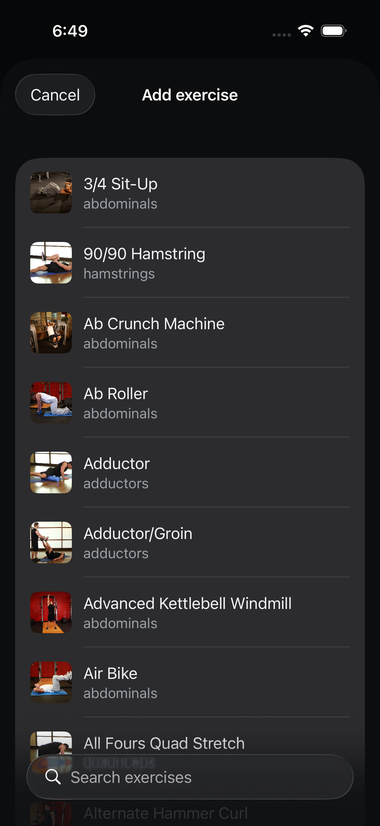
You can select more than one exercise at once here — either to add several quickly, or to set up a superset. See Plans & Templates for how that works. The same Filters menu (muscle group and equipment) is available here too, alongside search.